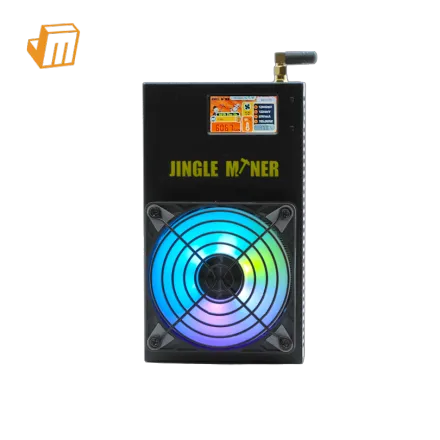

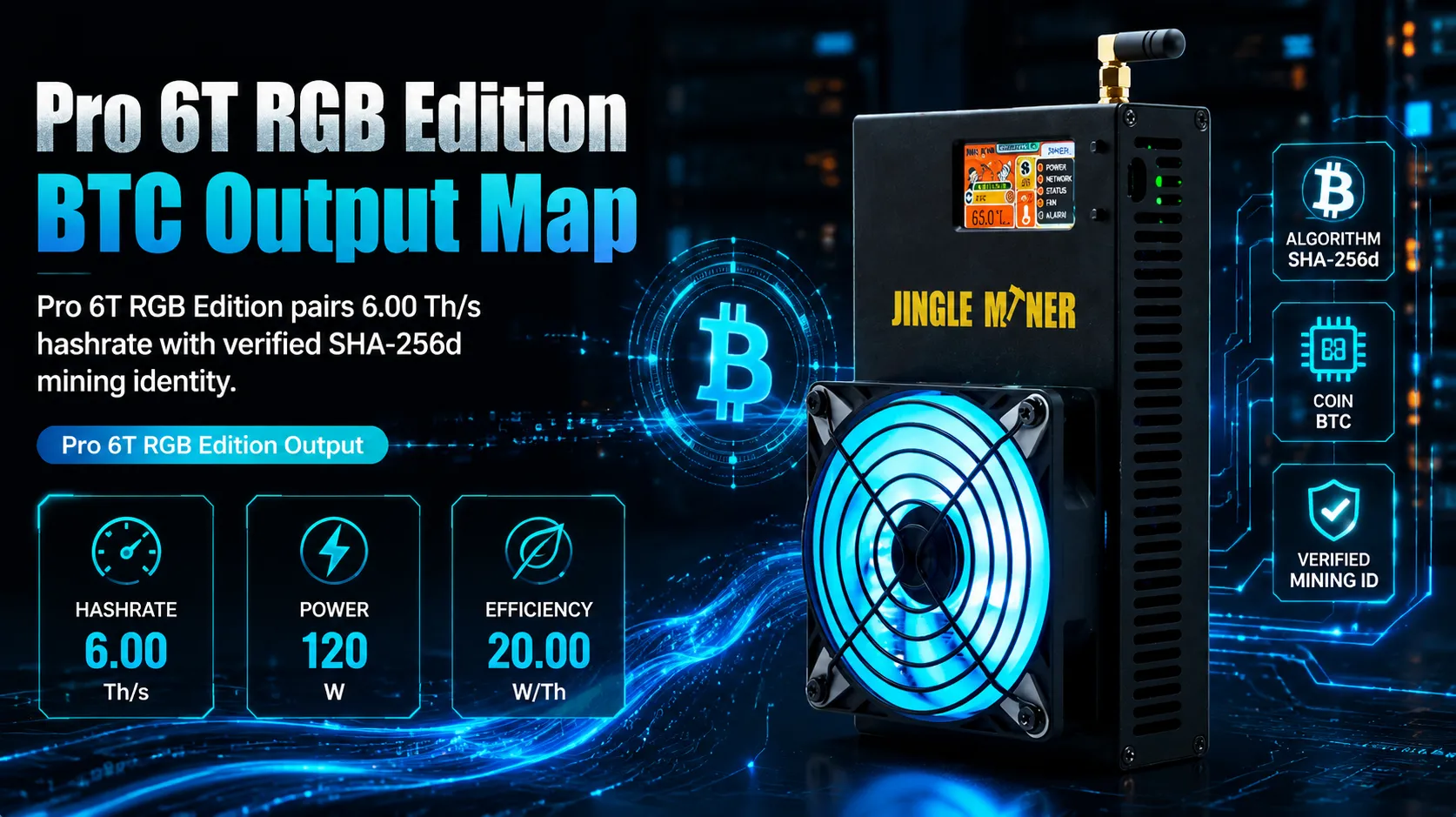
The Jingle Miner Solo Pro 6T RGB Edition is a specialized device for the enthusiast venturing into SHA-256 solo Bitcoin mining. With a dedicated 6.00 Th/s hashrate and a 120 W power draw, it's engineered for personal desk deployment, offering a unique opportunity to experience the thrill of finding a block solo. While not intended for industrial operations, achieving optimal performance and stability hinges on proper setup and proactive troubleshooting. This guide will walk you through deploying, configuring, and maintaining your Solo Pro to maximize its potential and ensure a rewarding solo mining journey.
Deployment Prerequisite Checklist
Before powering on your Jingle Miner Solo Pro 6T RGB Edition, creating an ideal operating environment is key. This preparation focuses on ensuring stable connectivity, adequate power, and efficient heat dissipation, crucial for any electronic device running continuously. Given its 120 W power consumption, attention to these details will prevent common issues and prolong the miner's lifespan.
· Power Source Verification: Use only the manufacturer-provided power adapter. The Solo Pro 6T RGB requires a stable 120 W input. Connect it directly to a wall outlet or a surge protector with sufficient headroom, avoiding overloaded power strips. Ensure the power cable is firmly seated at both the miner and the power source.
· Ventilation and Placement Strategy: Position the miner in an open area on your desk, allowing at least 6-12 inches of clearance on all sides. This ensures unobstructed airflow, critical for dissipating the heat generated by its 120 W operation. Avoid confined spaces, soft surfaces like carpets, or direct sunlight.
· Network Connectivity Assurance: A stable internet connection is non-negotiable for mining. While Wi-Fi might seem convenient, a direct Ethernet connection to your router is strongly recommended for superior reliability and lower latency. Verify your router is functioning correctly and your Ethernet cable is in good condition.
· Access and Monitoring Readiness: Have a computer or smartphone on the same local network ready to access the miner's web interface. You'll need an IP scanner tool to locate the miner's IP address and a web browser to connect. Familiarize yourself with your router's administration page for potential network adjustments.
Configuration & Networking
Successful solo mining begins with precise network configuration. Properly connecting your Jingle Miner Solo Pro 6T RGB Edition to your network and directing its 6.00 Th/s hashrate to a solo mining pool are essential steps. This involves discovering the miner's network address and inputting the correct pool credentials through its management interface.
1. IP Address Identification: After connecting the miner via Ethernet and powering it on, use an IP scanning tool (e.g., Angry IP Scanner) on a device within the same network. Identify the miner by its MAC address or hostname if provided. Alternatively, check your router's DHCP client list for newly connected devices.
2. Accessing the Web Interface: Launch your web browser and navigate to the identified IP address. This action should load the miner's login portal. Default credentials are often "root"/"root" or "admin"/"admin," but consult your device's manual for the correct login information. Once logged in, you will see the miner's dashboard.
3. Stratum Pool Configuration: Locate the "Miner Configuration" or "Pool Settings" section.
Here, you will enter the details for your chosen SHA-256 solo mining pool. This typically includes the pool's Stratum URL, a worker name (often formatted as your_btc_address. solo_pro), and a password (commonly x or left blank). Select a reputable solo mining pool that explicitly supports solo mining for Bitcoin (SHA-256).
> Pro Tip: Always save a backup of your miner's configuration settings if the interface supports it. This can expedite recovery if a reset or firmware update is necessary. Meticulously double-check all entered pool details for accuracy before saving.
Diagnostic Flowchart
Even with meticulous setup, micro-miners can encounter operational issues. Knowing how to diagnose and resolve common faults quickly will minimize downtime and keep your Jingle Miner Solo Pro 6T RGB running smoothly. The 120 W power draw makes it a manageable device, but consistent operation still requires attention to detail.
Miner Not Hashing or Zero Hashrate
If your Solo Pro is powered on but showing zero or very low hashrate, the issue typically lies with network connectivity or pool configuration. First, verify the physical Ethernet cable connection at both ends. Ensure the link lights on the miner's Ethernet port are active (usually green/orange). Next, access the miner's web interface and navigate to the "Miner Status" page. Check the "Pool Status" to see if it's connected and submitting shares. If not, re-check your Stratum pool configuration for typos in the URL, worker name, or password. Confirm that your internet connection is active and stable by testing it with another device on the same network. Sometimes, a simple reboot of both the miner and your router can resolve transient network issues.
Overheating or Unstable Operation
While the Jingle Miner Solo Pro 6T RGB is designed for desktop use, a 120 W power draw generates heat, and poor ventilation can lead to overheating, which in turn causes performance degradation or crashes. First, ensure the miner is placed in an open, well-ventilated area with ample clearance around its vents. Check if any dust or debris is obstructing the fan or heatsinks; if so, gently clean them with compressed air. Monitor the temperature readings in the miner's web interface. If temperatures are consistently high, consider adding a small desk fan to direct airflow towards the miner. Avoid placing the miner in direct sunlight or near other heat sources. Firmware updates can sometimes include thermal management improvements, so ensure your device is running the latest stable firmware version.
Connectivity Issues (Cannot Access Web Interface)
If you can't access the miner's web interface, it's usually a network-related problem. Start by ensuring the miner is powered on and its network cable is securely connected. Use an IP scanning tool again to confirm the miner's current IP address; it might have changed if your router's DHCP lease expired or if you have multiple devices. If the IP address is correct but still inaccessible, try pinging the IP address from your computer to confirm basic network reachability. If ping fails, try rebooting the miner and your router. As a last resort, if you suspect a misconfiguration, you might need to perform a factory reset on the miner (refer to the device's manual for the specific reset procedure), which will revert it to default settings and allow you to reconfigure it from scratch.
Technical Support
Should you encounter persistent issues or require assistance beyond the scope of this guide, JingleMining's dedicated technical support team is ready to help. Our experts are well-versed in the nuances of desktop miners like the Jingle Miner Solo Pro 6T RGB Edition and can provide tailored solutions to get your device operating at its peak. Do not hesitate to contact JingleMining support for advanced diagnostics, firmware guidance, or any other technical queries.
Frequently Asked Questions (FAQ)
Q: What is the primary advantage of solo mining with a device like the Jingle Miner Solo Pro?
A: The primary advantage is the potential for a direct, substantial reward if you are the sole miner to find a block. While the probability is low with a 6.00 Th/s hashrate on the Bitcoin network, it offers a unique learning experience and the excitement of a lottery-like outcome, distinct from pooled mining.
Q: How does the 120 W power consumption impact its suitability for a desktop setup?
A: A 120 W power draw is generally manageable for a desktop environment, comparable to many gaming PCs or high-performance laptops. However, it necessitates ensuring adequate ventilation to prevent heat buildup and using a reliable power source to maintain stable operation without affecting other connected devices.
Q: What should I do if my Jingle Miner Solo Pro stops hashing after a firmware update?
A: If hashing stops post-update, the first step is to attempt a reboot of the miner and your router. If that fails, access the miner's web interface and verify the pool configuration settings are still correct, as updates can sometimes reset these. If issues persist, consider reverting to a previous stable firmware version if available, or contact Jingle Mining support for advanced troubleshooting.