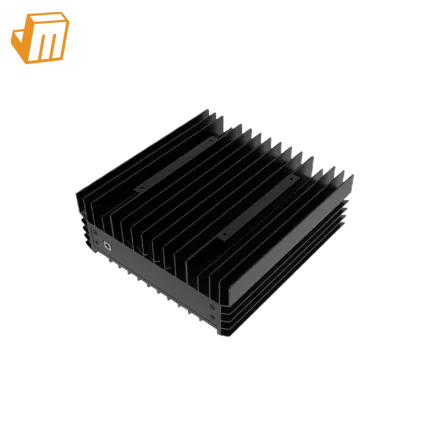

The ICERIVER XP0 150Gh represents a pivotal evolution in home-based cryptocurrency mining, particularly for the zkSNARK / ALEO algorithm. Designed with a compact, GPU-like form factor, this miner offers an accessible entry point for enthusiasts and small-scale operations aiming for efficient hash production without the industrial infrastructure demands of larger ASIC units. Achieving a robust 150Gh/s while consuming only 60 W, its operational efficiency of 0.40 W/GH positions it as a compelling choice for those prioritizing low power consumption and discreet deployment. This guide provides a detailed walkthrough for setting up your ICERIVER XP0 150Gh and offers practical troubleshooting steps to ensure continuous, optimized performance, empowering miners to maximize their investment with minimal fuss.

Deployment Prerequisite Checklist
Before initiating the setup of your ICERIVER XP0 150Gh, a thorough preparation phase is crucial to ensure a smooth and efficient deployment. This compact yet powerful unit, designed for the zkSNARK / ALEO algorithm, demands specific environmental and infrastructural considerations despite its modest footprint. Neglecting these preliminary steps can lead to operational inefficiencies, instability, or even damage to the hardware. Proper readiness ensures that the miner can achieve its rated 150Gh/s hashrate at its optimal 60W power draw, maintaining the impressive 0.40 W/GH efficiency without encountering preventable hurdles. Taking the time to verify each item on this checklist will significantly streamline the installation process and contribute to the long-term stability and profitability of your mining operation.
· Stable Power Supply: Given its 60 W power draw, the ICERIVER XP0 150Gh requires a reliable and consistent power source. Ensure you have a dedicated power outlet or a high-quality surge protector capable of handling the miner's load without fluctuations. While 60 W is low, continuous operation necessitates clean power to protect the sensitive internal components. Avoid sharing outlets with high-demand appliances that could introduce voltage spikes or drops.
· Robust Network Connection: A stable internet connection is paramount for any mining operation. The XP0 150Gh needs a consistent connection to the mining pool to submit shares and receive new work. A wired Ethernet connection is highly recommended over Wi-Fi to minimize latency and packet loss, which can impact profitability and share acceptance rates. Ensure your router or switch has an available port and that the network is configured for reliable data transfer.
· Adequate Ventilation & Cooling: Although the ICERIVER XP0 150Gh operates at a low power consumption of 60 W, generating heat is an inherent part of the mining process. Proper airflow is essential to prevent thermal throttling and extend the lifespan of the hardware. Position the miner in an open area, away from direct sunlight or enclosed spaces, to allow for effective heat dissipation. While it doesn't require industrial cooling, a well-ventilated room is crucial.
· Monitoring & Management Tools: Have a computer or mobile device ready with network scanning tools (like Advanced IP Scanner or Angry IP Scanner) to identify the miner's IP address on your local network. Additionally, ensure you have access to a web browser to access the miner's configuration interface. Familiarize yourself with basic network diagnostics to quickly identify and resolve connectivity issues.
Configuration & Networking
Configuring your ICERIVER XP0 150Gh for optimal performance involves a series of critical networking and pool setup steps. This process ensures your 150Gh/s unit, operating at a lean 60 W, can effectively communicate with the mining network and contribute to the zkSNARK / ALEO blockchain, maximizing its 0.40 W/GH efficiency. A meticulously configured miner is the cornerstone of a profitable and stable mining operation, preventing downtime and ensuring that every hash produced translates into potential earnings. The GPU-like form factor simplifies physical integration, but the digital configuration requires careful attention to detail to avoid common pitfalls that can hinder performance.
1. Locating Your Miner on the Network: Upon powering on the ICERIVER XP0 150Gh, it will attempt to obtain an IP address via DHCP from your router. To access its web interface, you first need to discover this IP address. Use a network scanning tool such as Advanced IP Scanner (for Windows) or Angry IP Scanner (cross-platform) on a computer connected to the same local network. Run a scan of your network's IP range. Look for a device manufactured by "IceRiver" or a device with an unknown hostname, typically identified by its MAC address. Once the IP address is identified, open a web browser and enter the IP address into the URL bar to access the miner's login page. The default credentials are often "root" for both username and password, but it's always best to consult the official documentation for specific factory defaults. Immediately change these default credentials upon first login for enhanced security.
2. Configuring Mining Pool Settings: After successfully logging into the web interface, navigate to the "Miner Settings" or "Pool Configuration" section. Here, you will input the details of your chosen zkSNARK / ALEO mining pool. You will typically need to provide three pieces of information for each pool: the Pool URL (or stratum address), your Worker Name, and a Password (usually "x" or left blank, depending on the pool). It is highly recommended to configure at least two, preferably three, different mining pools as failover options. This redundancy ensures that if your primary pool experiences downtime or connectivity issues, your ICERIVER XP0 150Gh automatically switches to a backup pool, preventing any interruption in mining activity and maximizing your uptime. Ensure the worker name is unique and easily identifiable on your mining pool's dashboard for accurate statistics tracking.
3. Advanced Network Settings and Firmware Updates: Beyond basic pool configuration, explore the "Network" section to potentially assign a static IP address to your miner. While DHCP works, a static IP can simplify future access and troubleshooting, ensuring the miner's address never changes. Additionally, regularly check the "Firmware Update" section for the latest software releases from IceRiver. Keeping your firmware up-to-date can provide performance enhancements, bug fixes, and improved security, all of which contribute to the longevity and efficiency of your 150Gh/s unit. However, always exercise caution when updating firmware; ensure a stable power supply during the process to prevent bricking the device.
> Pro Tip: Always test your network connection and pool configuration with a small, brief run before committing to long-term operation. Monitor the miner's hash rate and share acceptance on your chosen pool's dashboard to confirm everything is functioning correctly.
Diagnostic Flowchart
Even with meticulous setup, mining hardware can occasionally encounter operational issues. The ICERIVER XP0 150Gh, while robust, is no exception. Understanding common faults and having a systematic approach to troubleshooting can significantly reduce downtime and ensure your 150Gh/s miner continues to operate at its efficient 0.40 W/GH. These diagnostic steps are designed to help you quickly identify and resolve the most frequent problems, ensuring your 60 W power draw translates into consistent zkSNARK / ALEO hash production.
No Hashrate Reported / Miner Offline
If your ICERIVER XP0 150Gh is showing zero hashrate on the pool dashboard or appears offline in its web interface, the first step is to check its physical connections. Verify that the Ethernet cable is securely plugged into both the miner and your router/switch, and that the power cable is firmly connected to the miner and a live outlet. Confirm that the miner's status lights are illuminated as expected (refer to the manual for specific light indicators). If physical connections are sound, try rebooting the miner by disconnecting and reconnecting power. Next, re-scan your network using an IP scanner to ensure the miner still has an active IP address. If the IP has changed, access the new address in your browser. Finally, re-check the pool configuration in the miner's web interface, ensuring all pool URLs, worker names, and passwords are correct and free of typos. Sometimes, a temporary pool outage can also cause this; verify the pool's status independently.
Low Hashrate / Frequent Disconnections
A reduced hashrate or intermittent disconnections can indicate several underlying issues. Begin by monitoring the miner's temperature readings through its web interface. Overheating can cause the unit to throttle its performance to prevent damage. Ensure the miner has adequate ventilation, is not in an enclosed space, and that its fans (if applicable to the specific XP0 model) are spinning freely and not obstructed by dust. Next, examine your network's stability. High latency, packet loss, or an unstable internet connection can severely impact hashrate and lead to frequent disconnects. Run a speed test on your network and check for any ongoing network issues with your Internet Service Provider. If the network is stable, consider adjusting the mining pool's difficulty settings if your pool allows it, or switch to a different, closer mining pool to reduce network latency. Outdated firmware can also contribute to performance issues; check for and apply any available firmware updates.
Miner Fails to Boot / Power Issues
If the ICERIVER XP0 150Gh does not power on at all, or repeatedly attempts to boot and fails, the problem almost certainly lies with the power supply. First, ensure the power outlet itself is functional by plugging in another device. Then, inspect the power cable for any visible damage or kinks. If using a surge protector or power strip, try plugging the miner directly into a wall outlet to rule out issues with the intermediary device. While the XP0 150Gh only draws 60 W, an insufficient or faulty power supply unit (PSU) can prevent proper operation. If you have access to a multimeter, you can test the voltage output of your power adapter (if it's an external brick) to confirm it's supplying the correct voltage. If all external power components appear functional, and the miner still fails to boot, it may indicate an internal hardware fault, necessitating professional repair or replacement.
Technical Support
Navigating the complexities of cryptocurrency mining hardware, even with a user-friendly device like the ICERIVER XP0 150Gh, can sometimes require expert assistance. Should you encounter persistent issues that extend beyond the scope of this guide, or if you require specialized insights into optimizing your zkSNARK / ALEO mining operations, JingleMining's dedicated technical support team is ready to help. Our experts possess deep knowledge of IceRiver products and can provide tailored solutions, from advanced network troubleshooting to firmware guidance and performance optimization. Do not hesitate to contact JingleMining for comprehensive support, ensuring your ICERIVER XP0 150Gh delivers consistent and profitable performance.
Frequently Asked Questions (FAQ)
Q: What is the optimal environment for the ICERIVER XP0 150Gh?
A: The ICERIVER XP0 150Gh performs best in a cool, dry environment with good airflow. While its 60 W power draw makes it suitable for home use, ensuring it's not in an enclosed space helps prevent thermal throttling and prolongs its lifespan.
Q: How often should I check for firmware updates for my ICERIVER XP0 150Gh?
A: It is advisable to check for firmware updates periodically, perhaps once every few months or when experiencing unusual performance. Firmware updates often include bug fixes, security enhancements, and performance optimizations that can benefit your mining operation.
Q: Can I connect multiple ICERIVER XP0 150Gh miners to a single power outlet?
A: Given that each ICERIVER XP0 150Gh draws only 60 W, it is possible to connect multiple units to a single standard household outlet, provided the total wattage does not exceed the outlet's circuit breaker rating (typically 1500-1800W for a 15A circuit). Always calculate the total load and use high-quality power strips or PDUs to avoid overloading.