

Cannan Avalon Nano 3S Use & Setup Tutorial
01 Avalon Nano 3S Preparation
Appearance Inspection
Please inspect the packing condition of the received Avalon Nano 3S before unpacking it.
Any damage found, please contact us directly at [email protected] for further support.
Device Connection
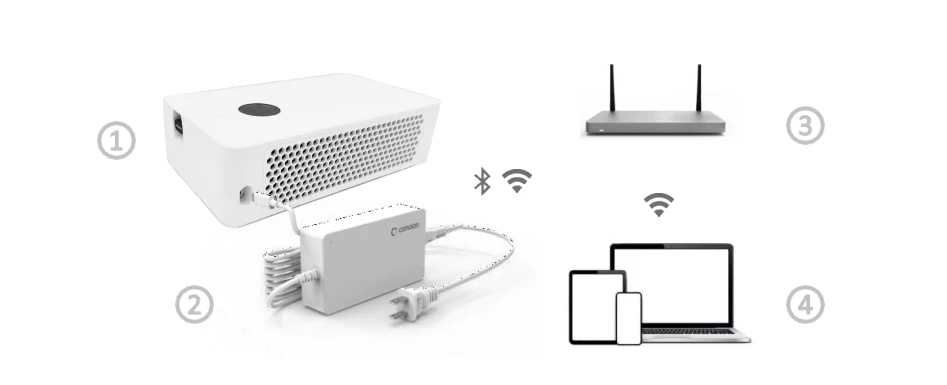
① Avalon Nano 3S (Wi-Fi module included)
② Power Adapter
③ Network server (excluded)
④ Mobile phone or laptop (excluded)
Software Preparation
Mobile APP - Avalon Family (for Avalon Nano 3S’s configuration and management)

Scan the QR code on the right to download and install Avalon Family from App Store or Google Play.
Avalon Nano 3S Startup
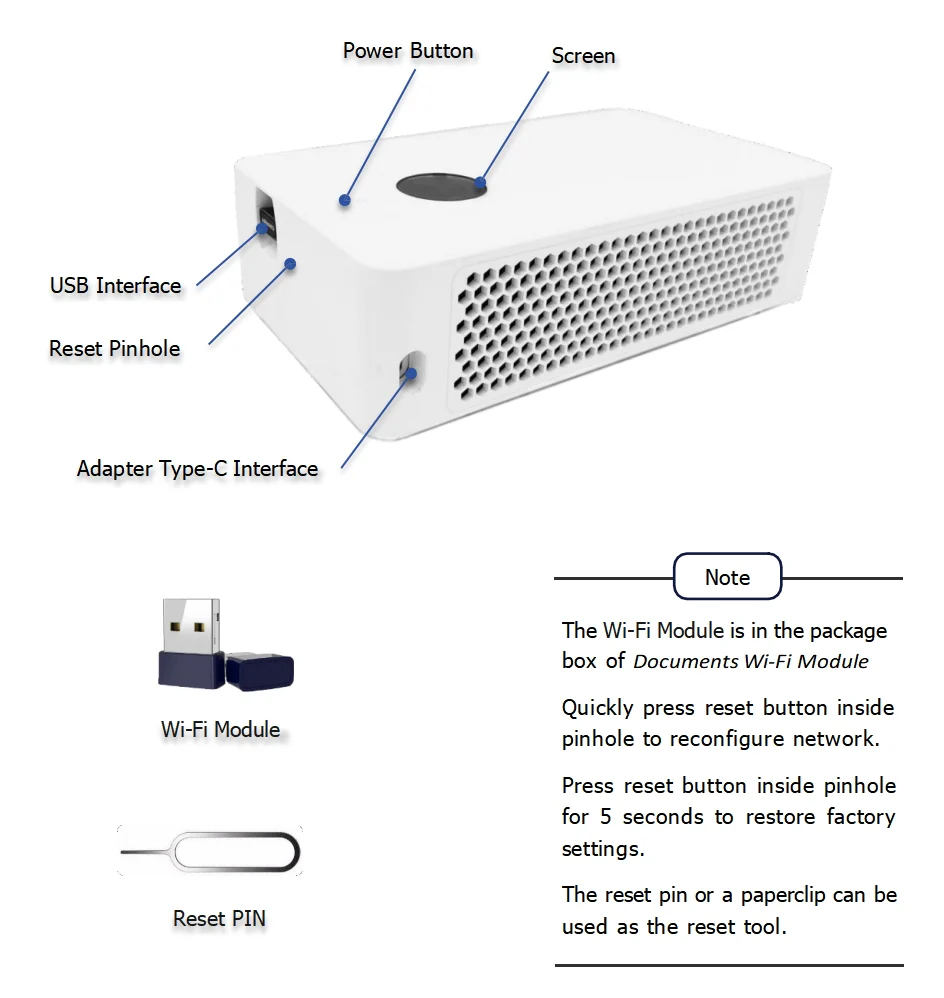
Before powering on, ensure the Wi-Fi module is in the USB interface.
Connect power adapter to adapter Type-C interface, then Avalon Nano 3S will automatically turn on after connecting the power.
If Avalon Nano 3S does not automatically turn on, press and hold Power Button for 2 seconds to turn it on manually
Nano 3S First-Run Troubleshooting
If the Avalon Nano 3S powers on but does not show stable mining results, check the setup in this order. First, confirm the miner and phone are on the same network during configuration. Second, verify the pool URL, worker name, and wallet address; one wrong character can prevent accepted shares. Third, wait long enough for the dashboard to show meaningful hashrate because small miners can fluctuate more visibly than large ASICs. Fourth, move the unit closer to the router if the interface loads slowly or disconnects. In 2026, many support tickets come from network and pool-entry errors rather than hardware faults. Add screenshots of each successful state so beginners know what “working normally” looks like.
02 Avalon Nano 3S Configuration and Management- Mobile
Avalon Nano 3S Network configuration – Mobile
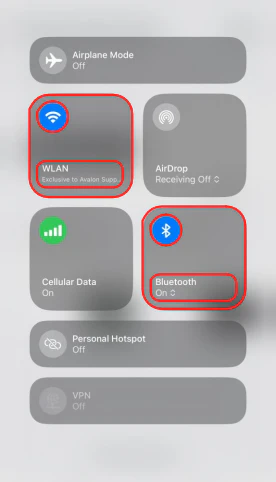
Open mobile phone settings, turn on Bluetooth, and connect the phone to the Wi-Fi that the Avalon Nano 3S needs to connect to. (The wireless network should be 2.4GHz Wi-Fi.)
Note:
The steps presented on iOS devices. Android devices have slight differences but share the same steps.
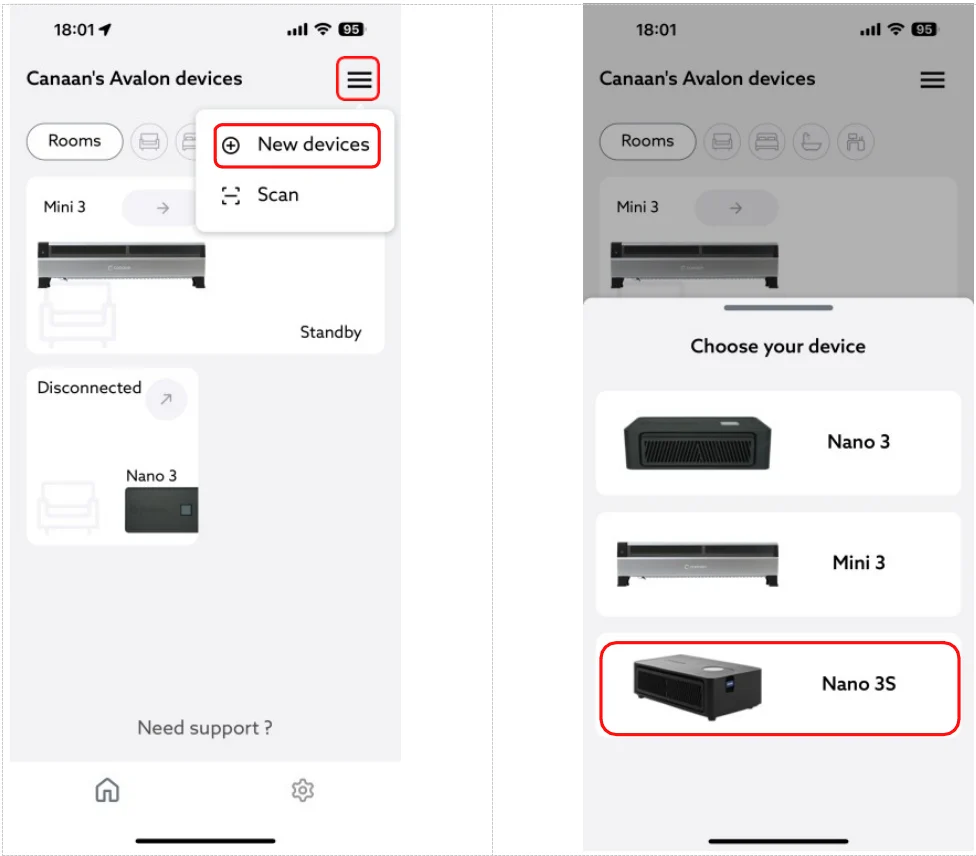
Open the Mobile APP - Avalon Family, click “≡” on the right corner, and click “New devices”, then select “Nano 3S”.
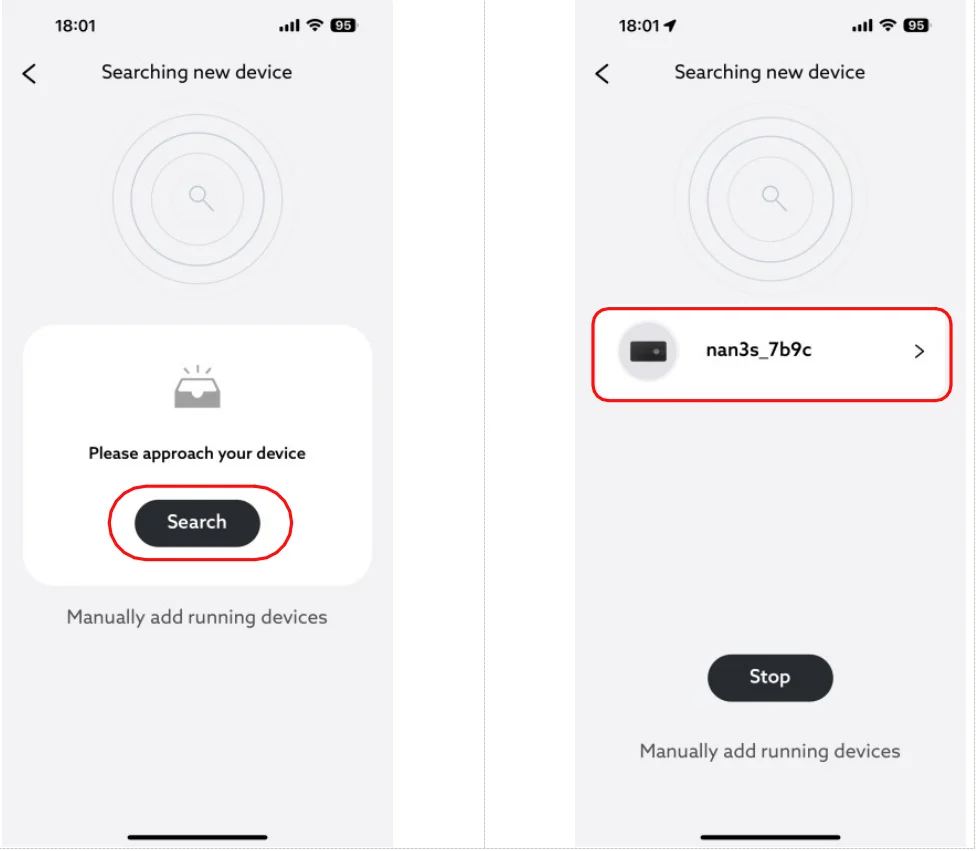
Click “Search”, then select “nano3s_xxxx” to connect.
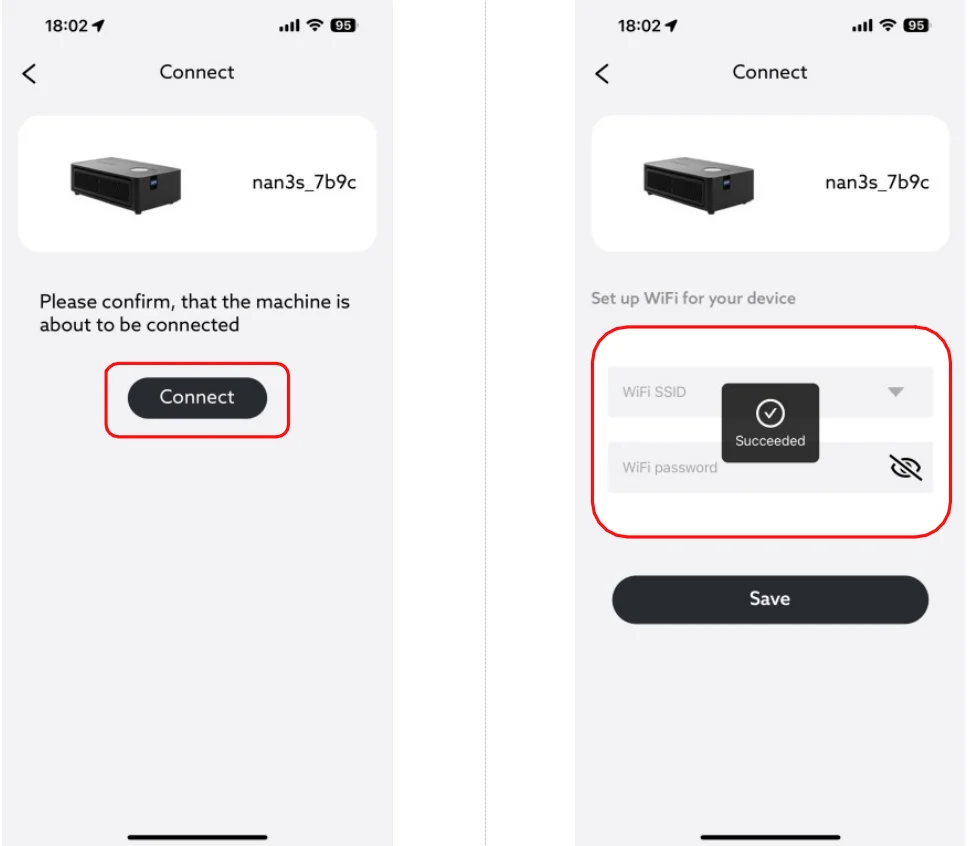
Click the “connect” button, select Wi-Fi SSID, enter Wi-Fi password, and click “Save” button, then Avalon Nano 3S will start connecting to Wi-Fi.
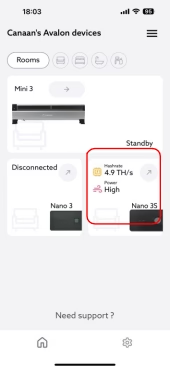
Once Avalon Nano 3S is connected, it will appear on the homepage of Avalon Family APP, then Avalon Nano 3S can be managed by Avalon Family.
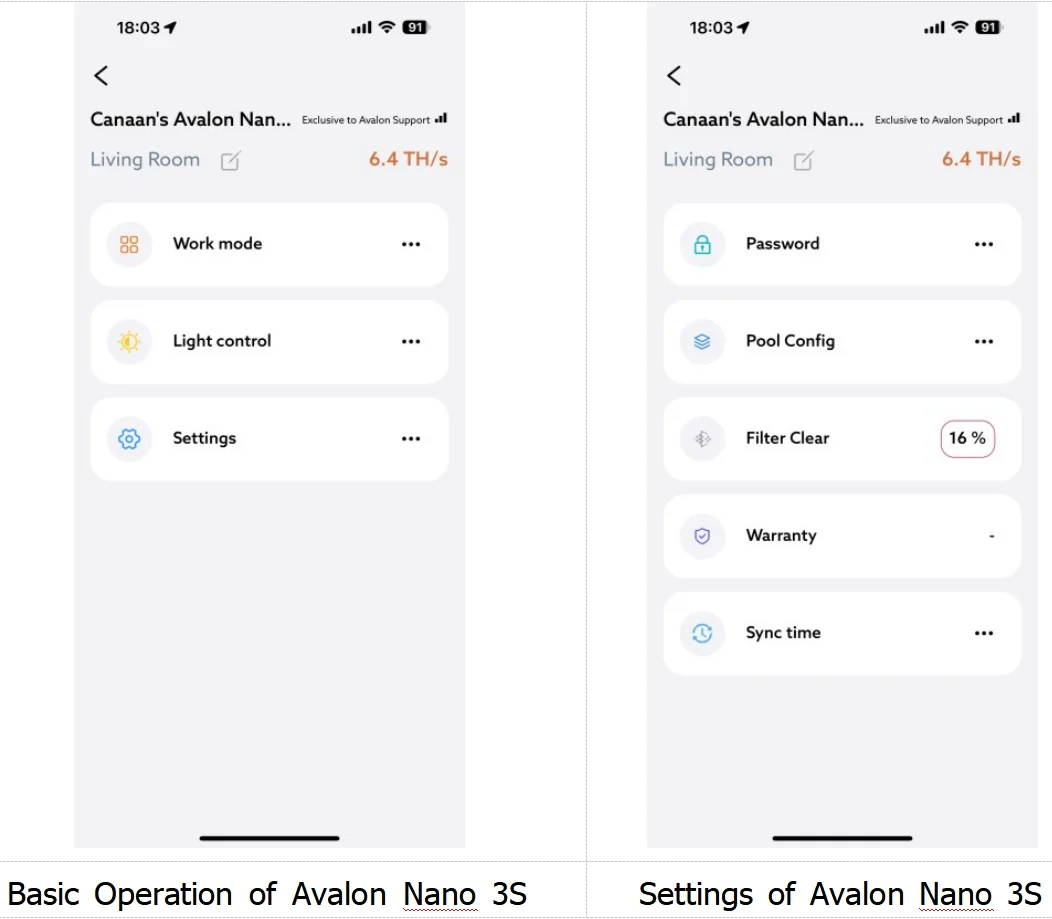
Avalon Nano 3S Management - Mobile
03 Avalon Nano 3S Mining Pool Configuration - Mobile
Click “Pool Config”, enter the pool addresses, worker name and passwords, then click “Save” button
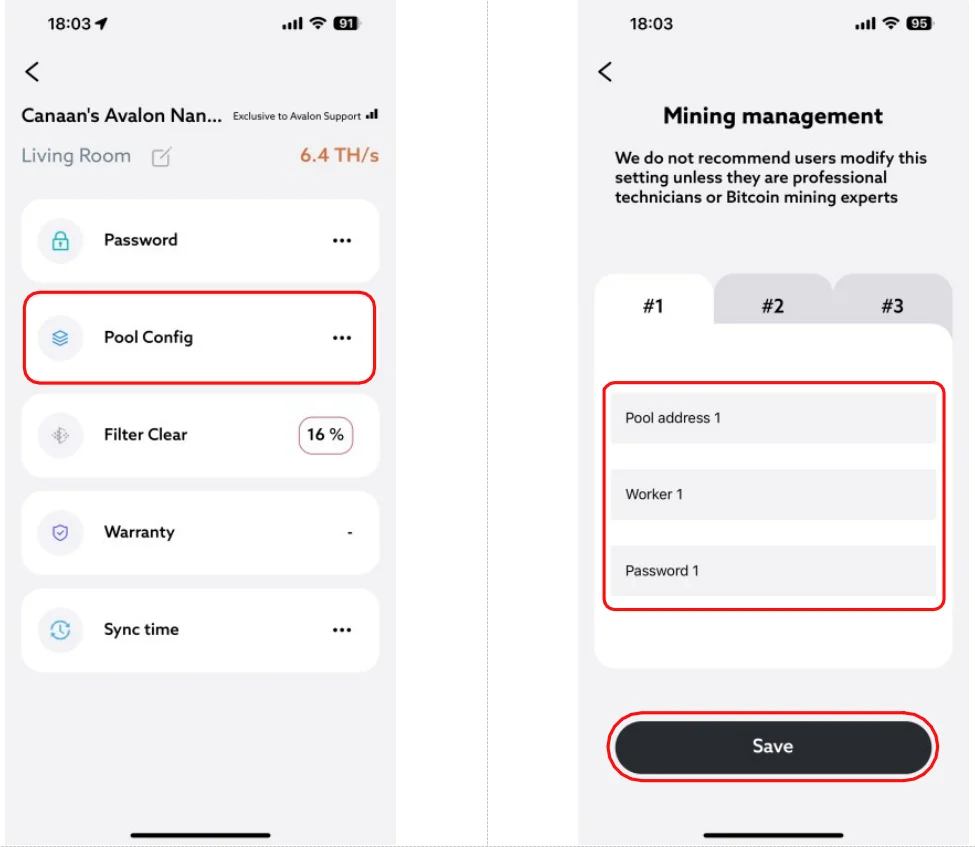
When it prompts "please enter password", please enter the password (The default password: admin),then click “continue". After mining pool configuration, the device will automatically restart to apply the change.

04 Avalon Nano 3S Management – Laptop
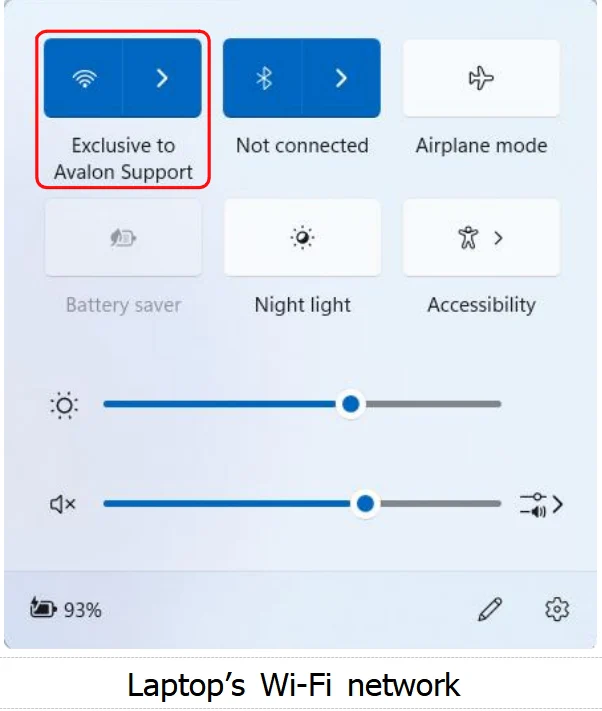
Connect the laptop to the Wi-Fi network that Nano 3S’s already connected.
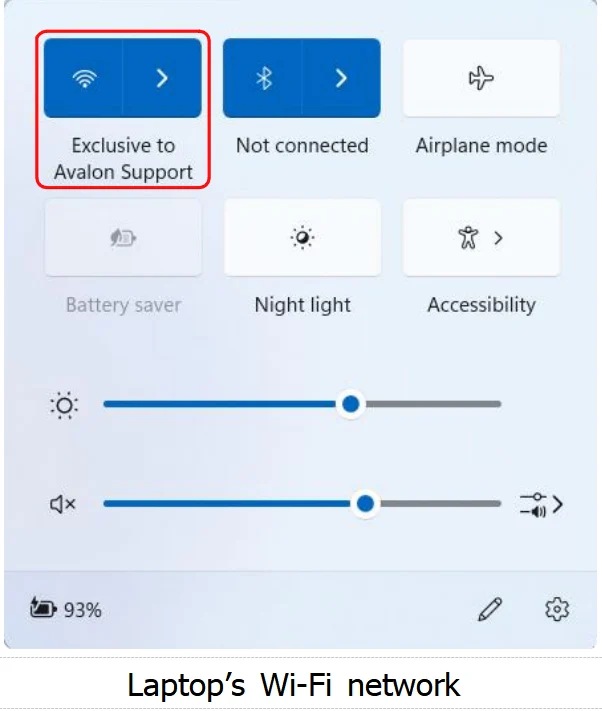
Enter Avalon Nano 3S's IP address in the browser's address bar into its login web page, (Long press Nano 3S’s icon of Avalon Family, it will prompt its IP
address).
Login Method 1: Login with password.
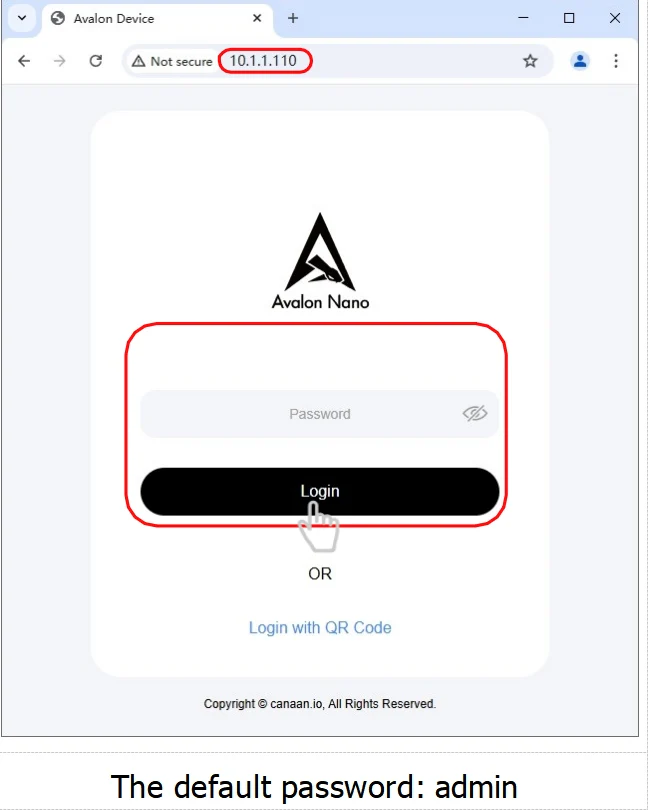
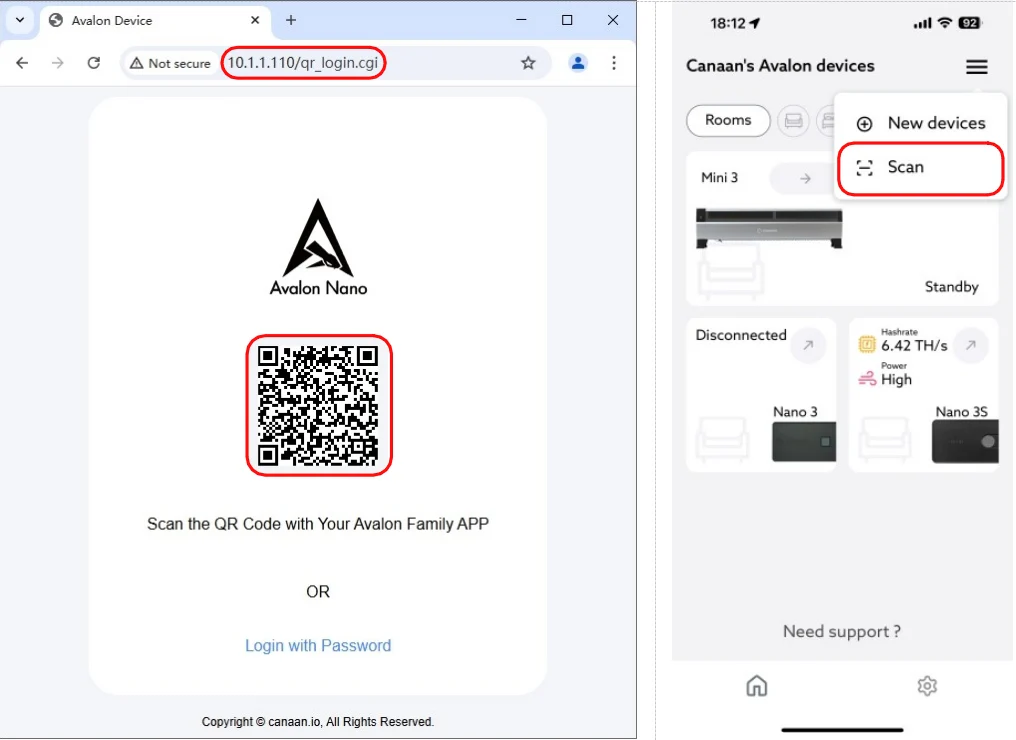
Login Method 2: Login with QR code scan.
Open Avalon Family, click “≡”, then click “Scan” to scan the QR code to login.
05 Avalon Nano 3S Mining Pool Configuration – Laptop
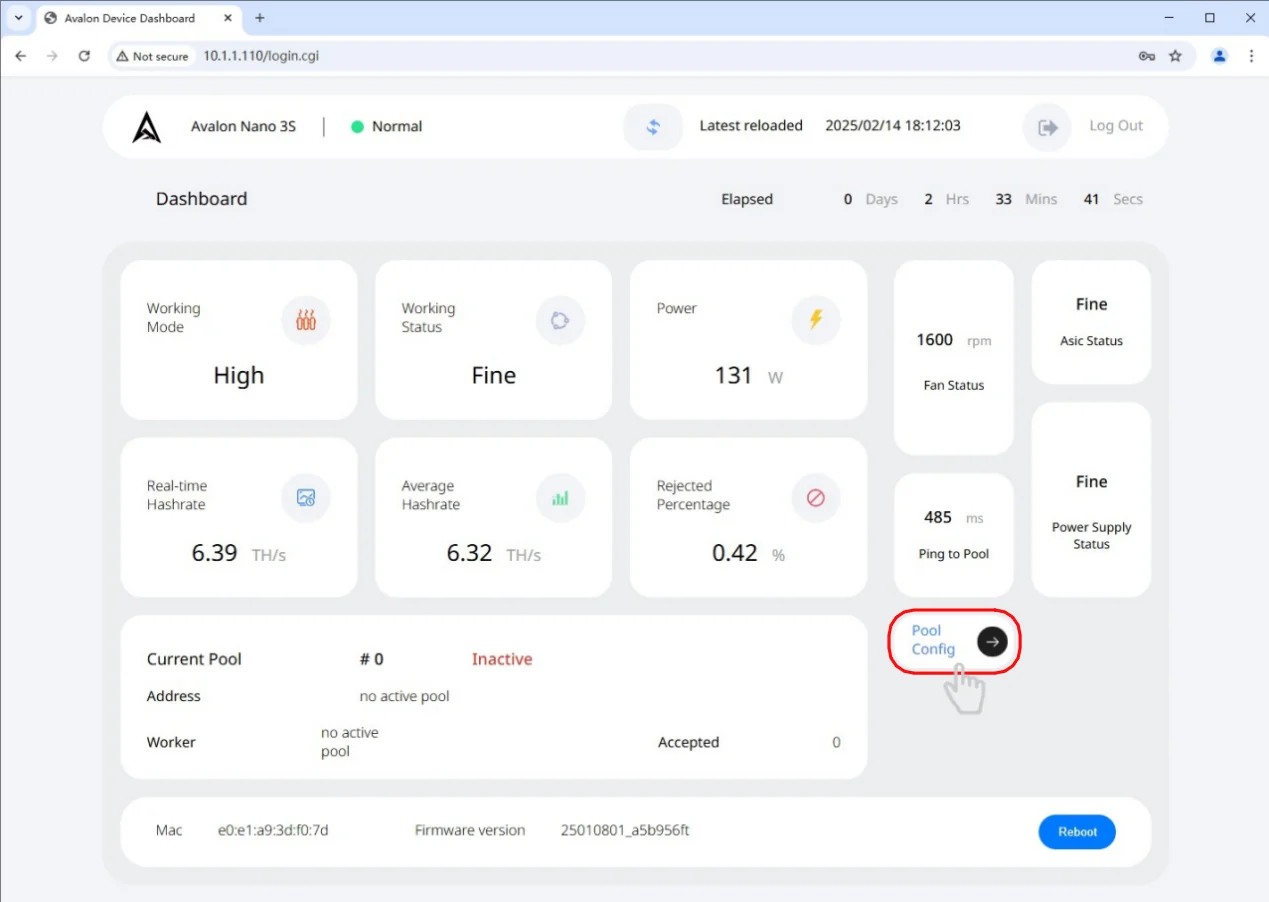
Login Nano 3S’s management web page, click “Pool Config” button to configure its mining pools.
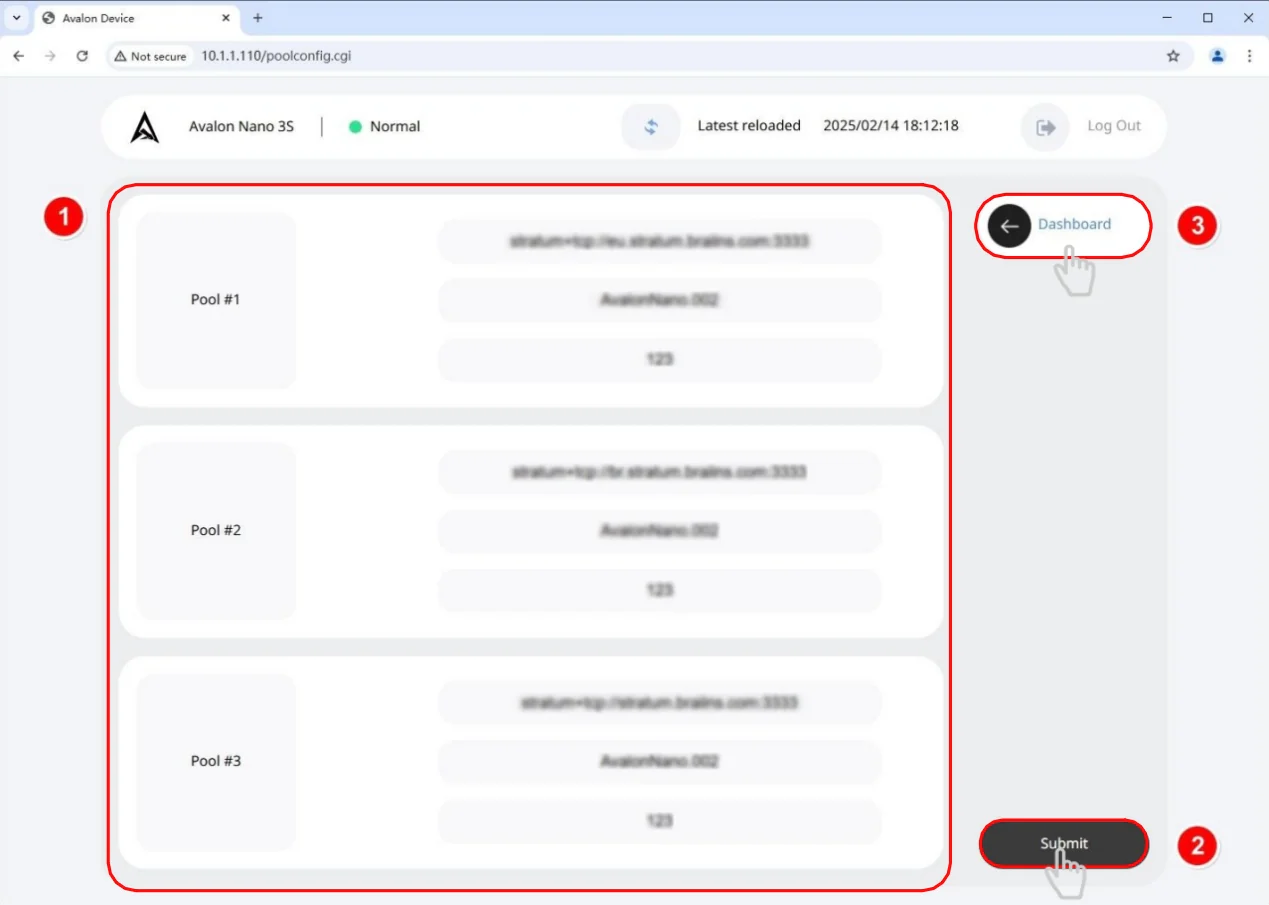
Enter all the three pool addresses, worker names and passwords, then click “Submit “button, click “Dashboard” to return to the main page.
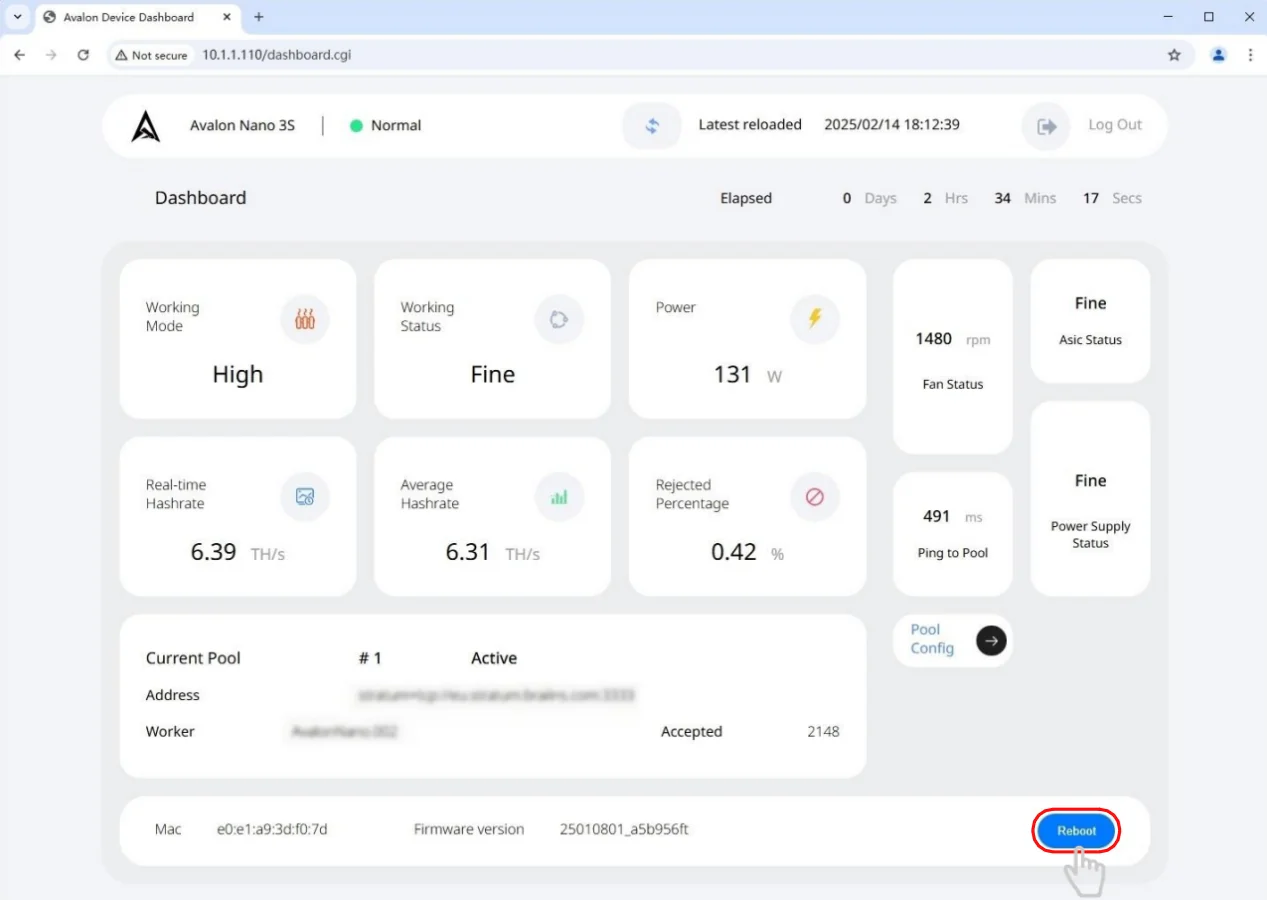
On the main page, click “Reboot” button to apply the mining pool configuration.
06 After-Sales Support
If you have questions regarding Avalon Nano 3S, please contact us directly for further information.
Website:https://support.canaan.io Email:[email protected]
Disclaimer
The contents of this document are for information purposes only, and provided "as is".
All pictures are for reference only, the final shipment version shall prevail.
Copyright © Canaan Inc. All rights reserved.